HELP & GUIDES

← All help & guides · Updated

Add an
office manager.

Invite one person by email, then approve their access from your phone. They send, invoice and record payments; you keep the business. Free on every account. Works in the web app and the browser portal today; the iPhone and Android apps get it with their next update.

GUIDE 01

Invite them

One seat. You need their email address.

  1. Open Settings, tap ACCOUNT and find the Team card.
  2. Type Their email and tap Invite by email. They get an email with a link that works for 72 hours.
  3. They open the link and sign in with that email. That makes their own login.
  4. Prefer in person? Tap Show QR instead and let them scan it.

Why it matters: the manager gets a login of their own, so you never share your password.
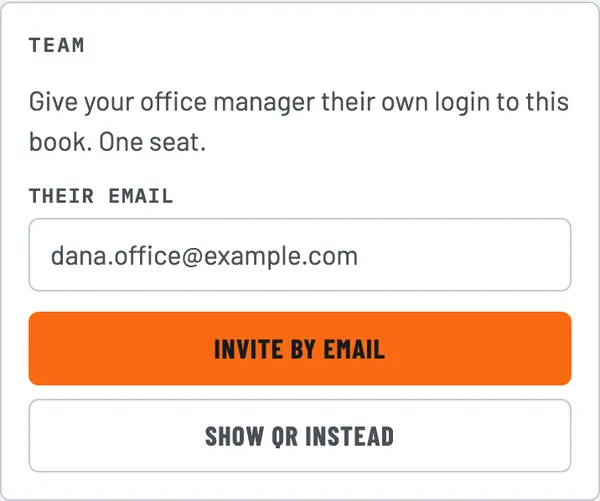
Settings, ACCOUNT tab, Team card: Give your office manager their own login to this book, an email field and the Invite by email and Show QR instead buttons.
GUIDE 02

They ask to open your book

Nothing opens until you say so.

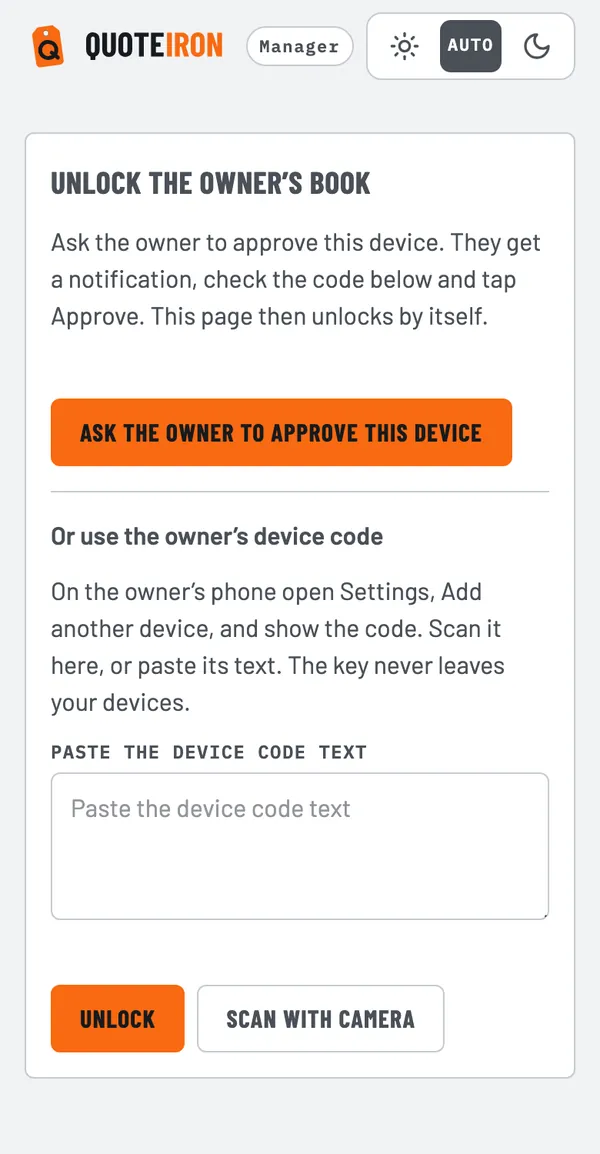
  1. The manager opens the office page in their browser and signs in. They see Unlock the owner’s book.
  2. They tap Ask the owner to approve this device. A short code appears on their screen, for example SE8-CHD.
  3. The page waits. They can tap Cancel request any time.

Why it matters: the owner’s approval is what hands the book to their device, end to end encrypted. QuoteIron cannot open your book.

The office page: Unlock the owner’s book, Ask the owner to approve this device button, and Or use the owner’s device code with a paste box and Scan with camera.
GUIDE 03

You approve from your phone

You get a notification, then Approve or Deny.

  1. You get a notification: Approve (their name)’s device? Tap it, or open Settings → ACCOUNT → Team.
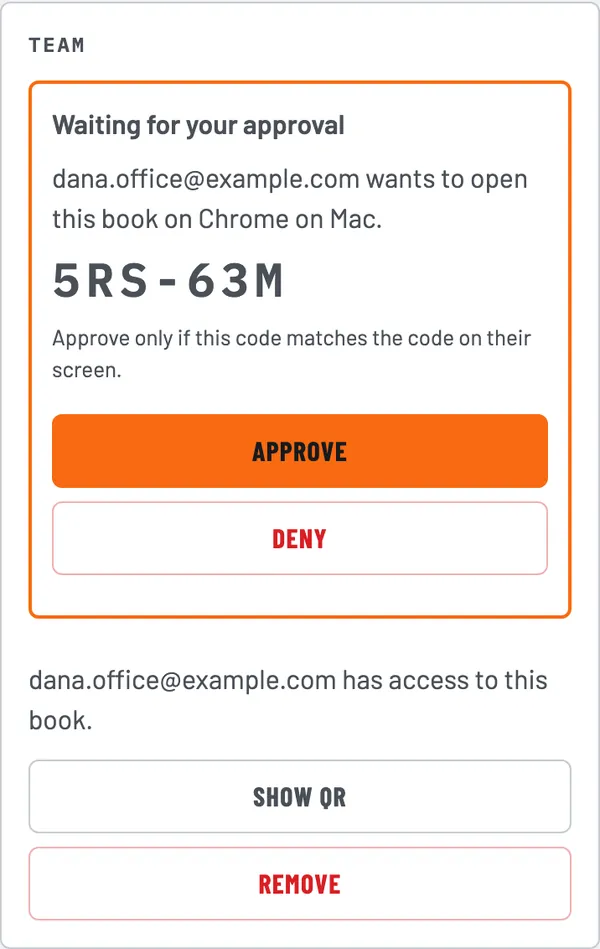
  2. Under Waiting for your approval you see their email, the device and a code. Check it matches the code on their screen.
  3. Match? Tap Approve. Not what you expected? Tap Deny. That device gets nothing.
  4. The manager’s page unlocks by itself a moment later.

Why it matters: the matching code is how you know it is really your manager, not someone who found the link.

Team card with Waiting for your approval: a request from dana.office@example.com on Chrome on Mac, the code, and Approve and Deny buttons, then Show QR and Remove.
GUIDE 04

What your manager can do

Run the office. Not your business.

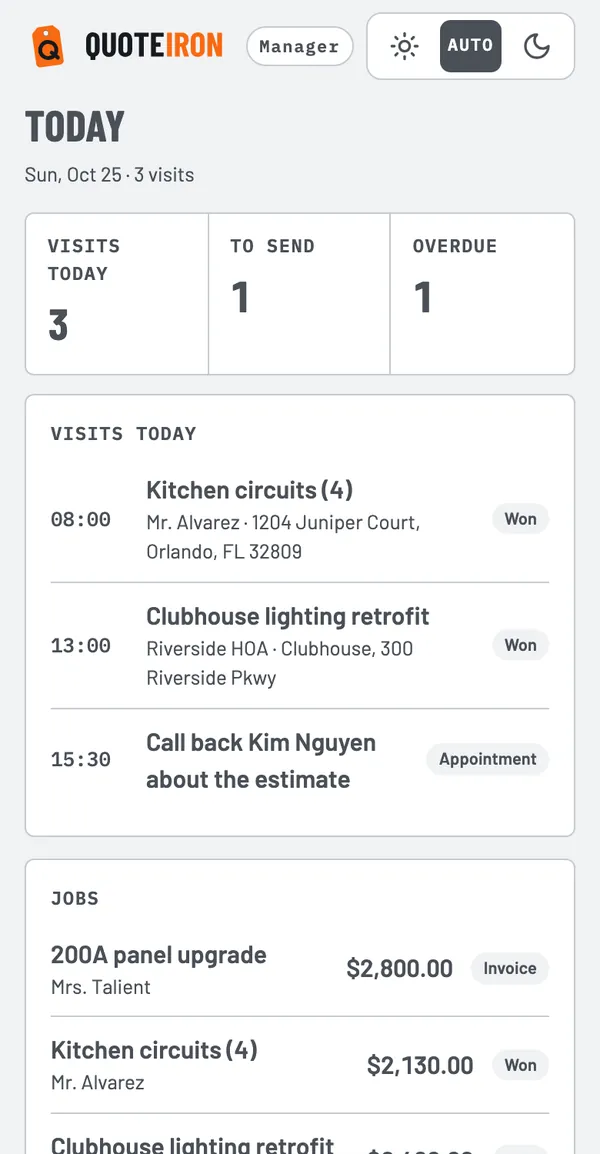
  1. They see Today, Customers, Documents and Money: visits, clients, estimates and invoices, and what is owed.
  2. They can send documents, record payments, and send card or bank payment links.
  3. They cannot change billing, your Stripe connection, your subscription, delete the account, or your logo, name, address and license. Tap to Pay stays with you.
  4. To end it, tap Remove on the Team card. They are signed out right away.

Why it matters: they can keep the books moving while you are on a roof, and you stay in charge of the business.

The office page after approval: Today with visits today, to send and overdue counts, and a list of jobs, with Today, Customers, Documents and Money along the bottom. Demo data.
TROUBLESHOOTING

If something looks off

Quick fixes.

The invite expired. Invites last 72 hours. Remove the seat and invite them again.

“That email already has a QuoteIron account.” Use a different email for the manager.

“The seat is taken.” You have one seat. Remove the current login first.

I got no notification. Open Settings → ACCOUNT → Team. The request is waiting there.

“This device doesn’t hold your book key.” Approve from a device where your book is open.

The codes do not match. Tap Deny and ask them to try again.

Approving does not work. Use the backup path: on your phone open Settings → Add another device, and let them scan or paste that code at the bottom of their unlock page.

STRAIGHT ANSWERS

FAQ

Do I need Pro to add an office manager?

No. One office manager seat is included on every account, Free and Pro.

Is the office manager a second account on my book?

They have their own login, and the book stays yours. They work in your book, not a copy of it. Remove them any time and they are signed out right away.

Can my office manager see my bank or change my billing?

No. They cannot touch billing, your card-payments (Stripe) connection, your subscription, deleting the account, or your logo, business name, address and license. Tap to Pay is for the owner only.

What can they do?

Send estimates and invoices, record payments, and send card or bank payment links. They can also work in your clients, jobs and price book. What they send counts toward your monthly job limit the same way yours do.

Which devices work?

The web app and the office page in a browser today; the iPhone and Android apps get it with their next update. You approve from any device where your book is open.

What if I never approve?

Nothing opens. Their device just waits. You can tap Deny, or Remove their seat in Settings, Account, Team.

Related: Set up your request page · All help & guides

Enough reading.
Price a job.

The whole thing works offline, on your phone, in about 90 seconds. Free for 5 jobs a month — then $15.99, cancel anytime.

5 FREE JOBS A MONTH no credit card required GET THE APP
PricingGET THE APPFAQ