HELP & GUIDES

How QuoteIron
works.

Ten short walkthroughs — the jobs you'll actually do, start to finish. No help-desk runaround. Every screenshot below is the real app, not a mockup.

GUIDE 01

Forge your book

First run, one time. Pick your trades, punch in three numbers, and 408 job templates become your flat-rate price book — priced from your rate, not ours.

  1. Open the app and tap every trade you work — electrical, plumbing, HVAC, appliance and garage-door repair, pressure washing, lawn care, handyman.
  2. Type your business name.
  3. Set three numbers: your labor rate, your materials markup, and your service-call fee.
  4. Tap FORGE MY BOOK. Every template prices itself from your numbers in a second.

Why it matters: change your rate later in Setup and the whole book reprices instantly. Every job stays editable — the templates carry the structure, you carry the price.

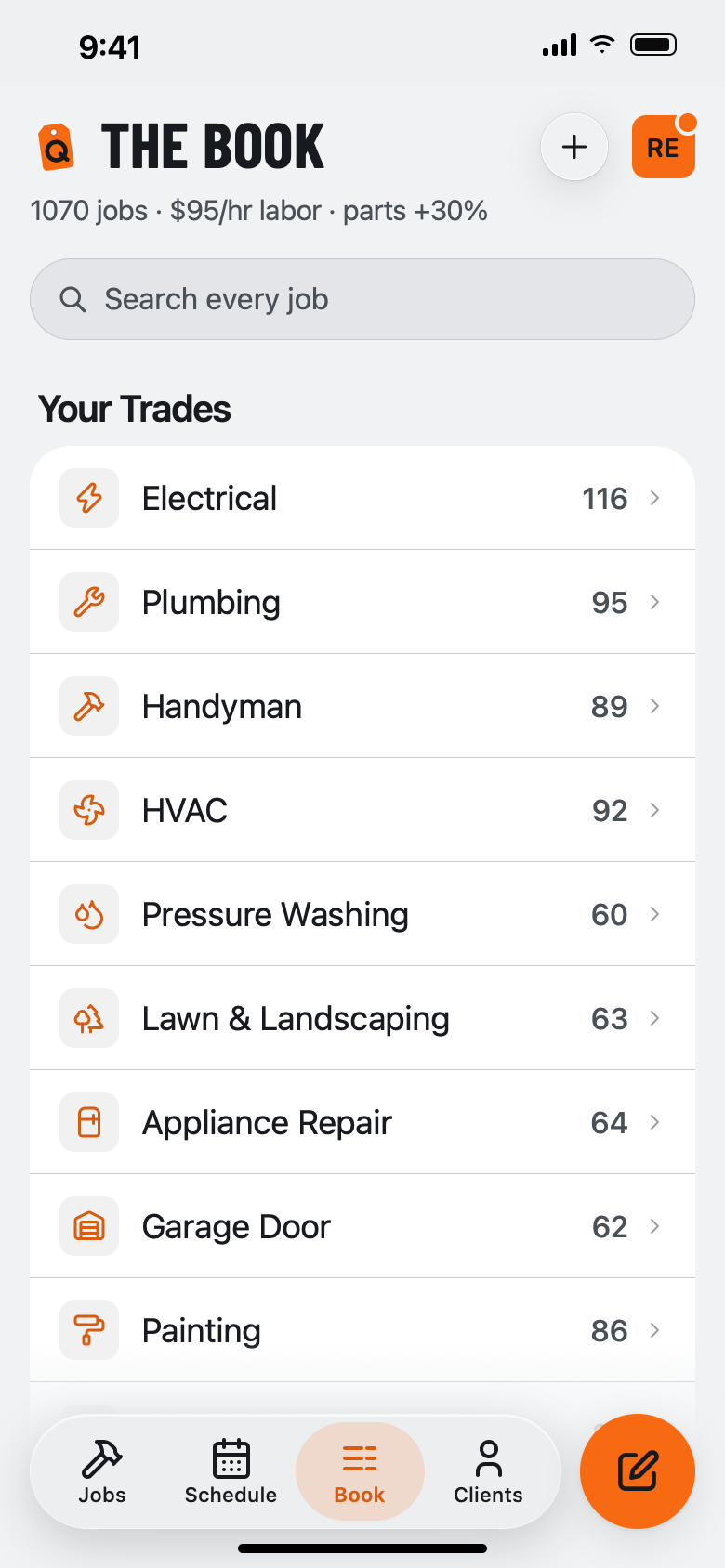
The Book screen: 408 jobs at $125 an hour, a list of priced electrical jobs like a diagnostic visit at $135.
GUIDE 02

Send your first quote

You're standing in the driveway. Build a firm price in about 90 seconds and send it as a link or a PDF.

  1. Tap + QUOTE. Pick the client, or add a new one on the spot.
  2. Type in the search box and tap the jobs you're doing. Prices land as you go.
  3. Need something the book doesn't have? Tap + custom line and name your own price.
  4. Tap Text or Email to send the link — or PDF / SHARE to hand it over any way you like.

Why it matters: the link tells you when it's opened (it turns SEEN) and when it's approved (it turns WON) — so you never send another "did you get my quote" text.

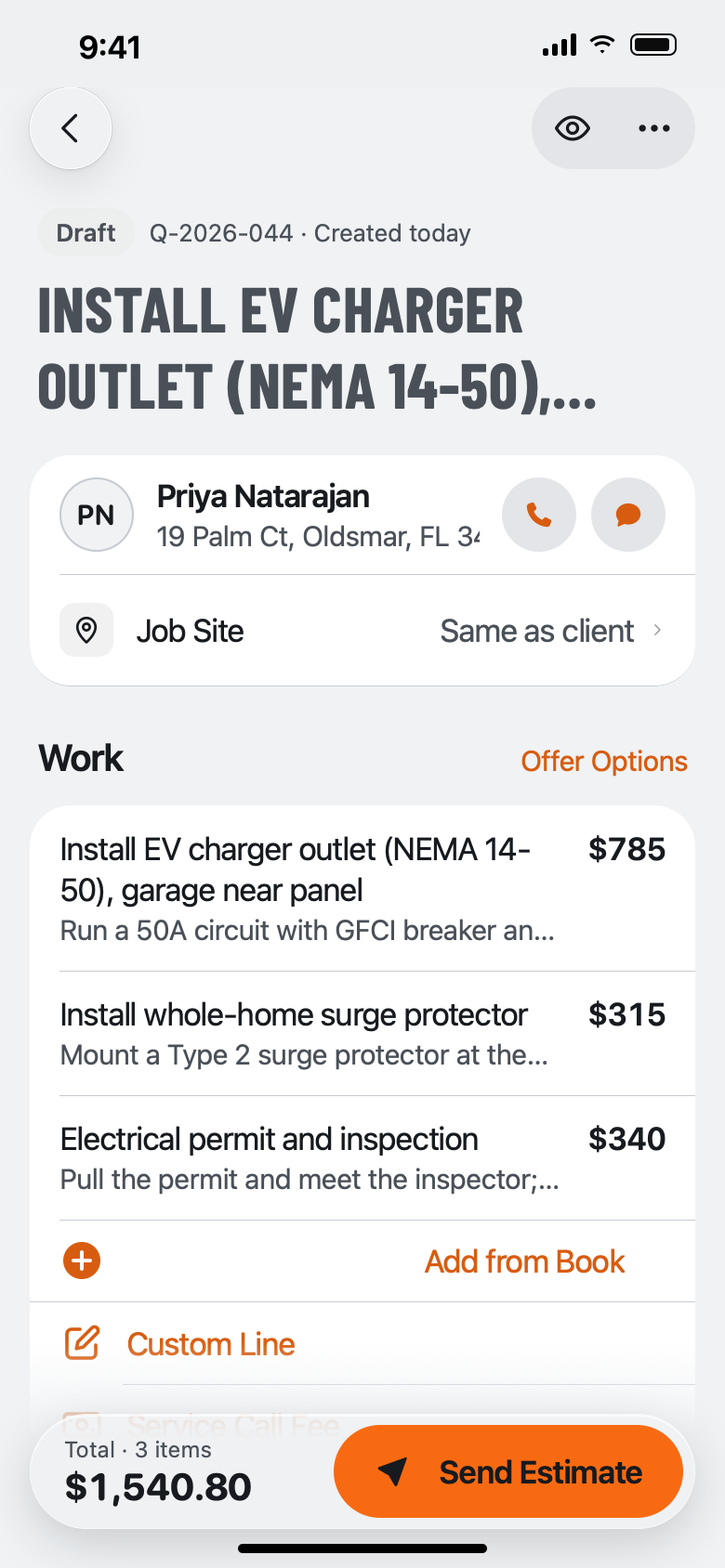
A draft quote for Dana Whitfield with three tapped jobs — circuit breaker, water heater, kitchen faucet — each priced.
GUIDE 03

Get it signed in the driveway

Close it while you're standing there. Your customer signs on your phone — or on theirs, from the share link.

  1. Open the quote and tap CUSTOMER SIGNATURE.
  2. Hand them your phone. They sign with a finger.
  3. Tap SAVE SIGNATURE. The quote flips to WON and stamps their name and the date.
  4. Or: they open the share link and sign there — same result, no hands on your phone.

Why it matters: the signature prints on the PDF. It's proof you agreed on a price — not a substitute for a formal contract where the law requires one.

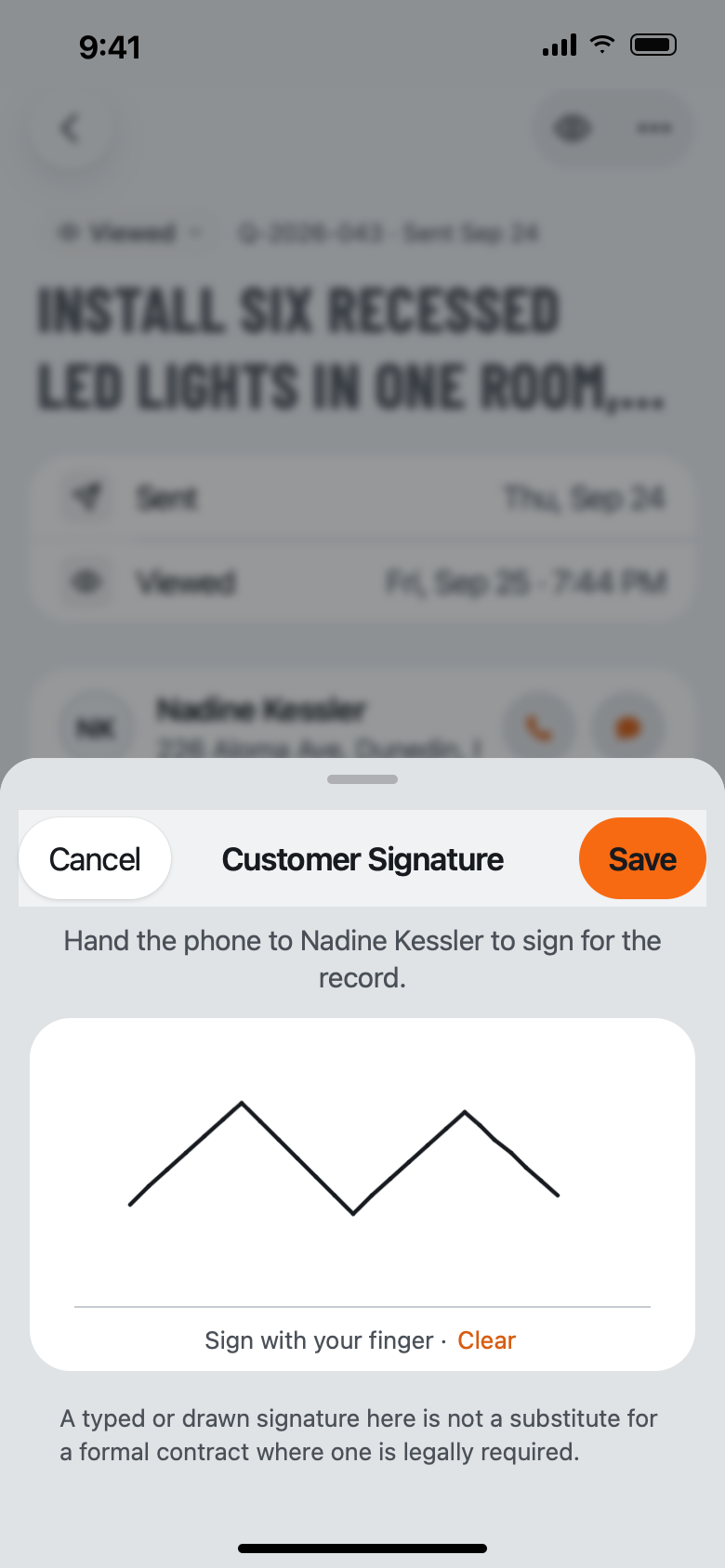
The CUSTOMER SIGNATURE sheet with a signature drawn on the pad, and CLEAR and SAVE SIGNATURE buttons.
GUIDE 04

Give them good-better-best

Let the customer choose their own price. Put up to three tiers on one quote and let them pick.

  1. In the quote, tap + Turn on good / better / best options.
  2. You get a Basic, Recommended, and Premium tier — rename them however you like.
  3. Tap a tier, then add the jobs that belong in it. Each tier prices itself.
  4. Send it. The customer taps the tier they want.

Why it matters: when you turn their pick into an invoice, the other two tiers drop away — the invoice collapses to exactly what they chose.

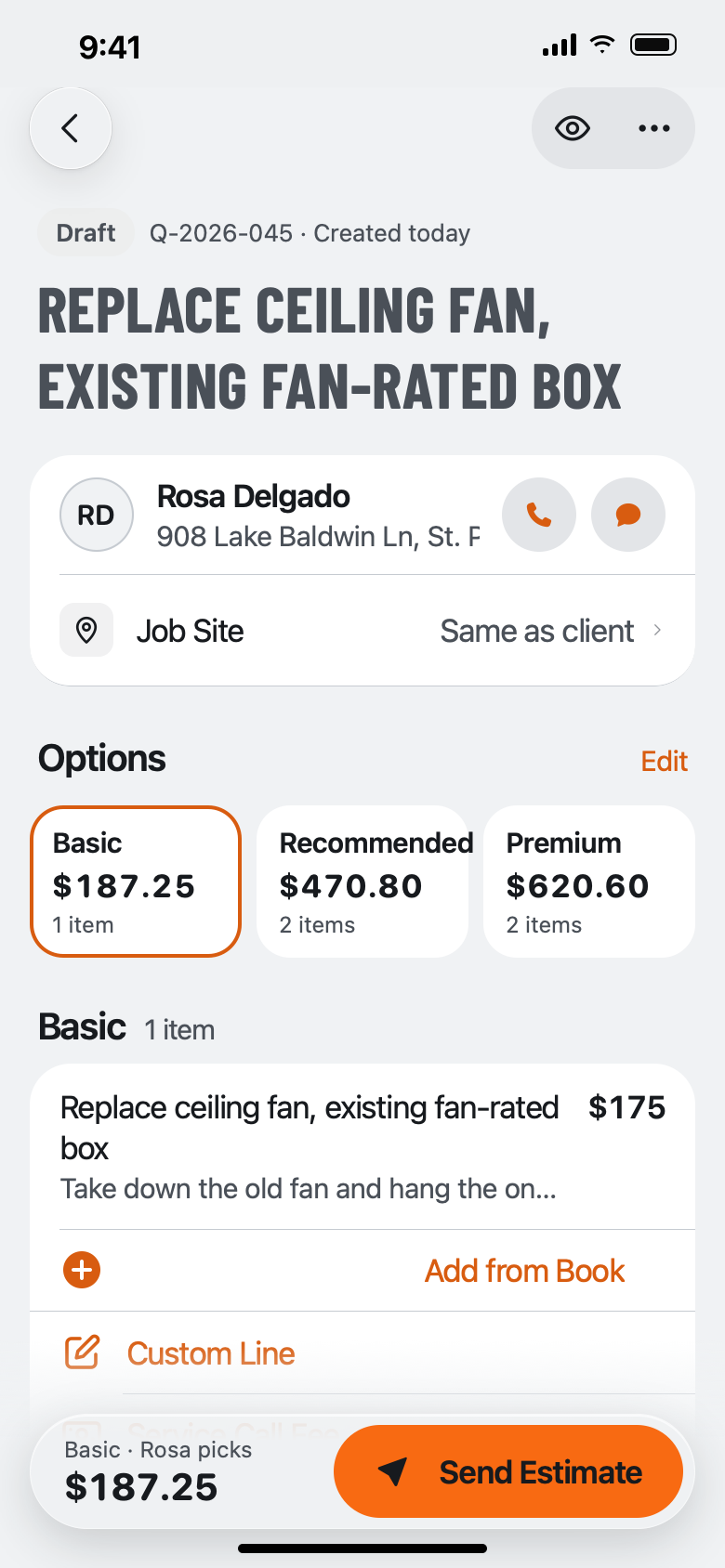
A quote with three option tiers — Recommended $405, Basic $105, Premium $1,455 — shown as tabs and a totals board.
GUIDE 05

Put photos on the quote

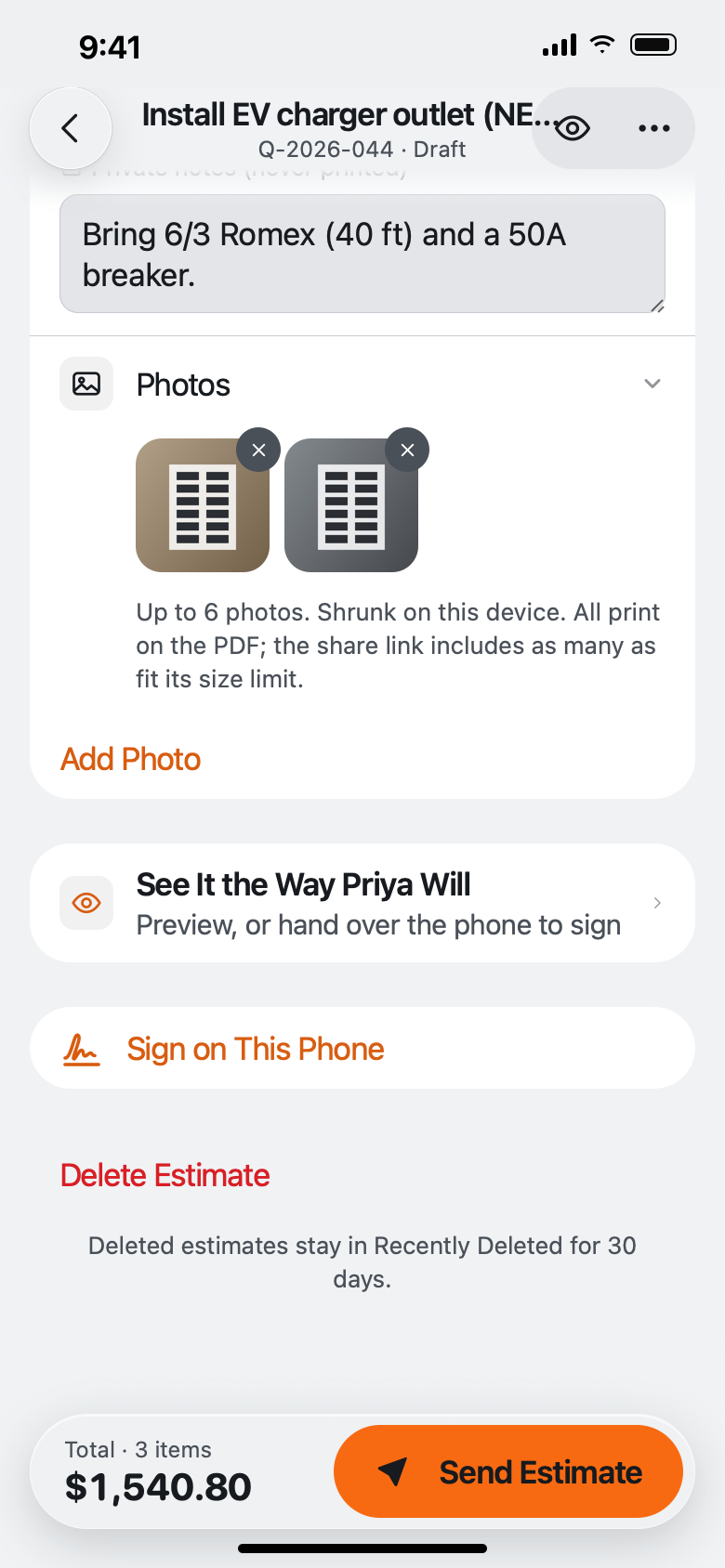
Show them the corroded panel or the cracked spring. Then nobody argues about what you found.

  1. In the quote, scroll to PHOTOS and tap + PHOTO.
  2. Snap a shot or pick one from your camera roll. Up to six per job.
  3. They shrink on your phone, so the quote stays small and sends fast.

Why it matters: every photo prints on the PDF, and as many as fit ride along in the share link your customer opens.

The PHOTOS section of a quote with three job photos attached — a water heater, an electrical panel, and a floor drain.
GUIDE 06

Turn a win into an invoice

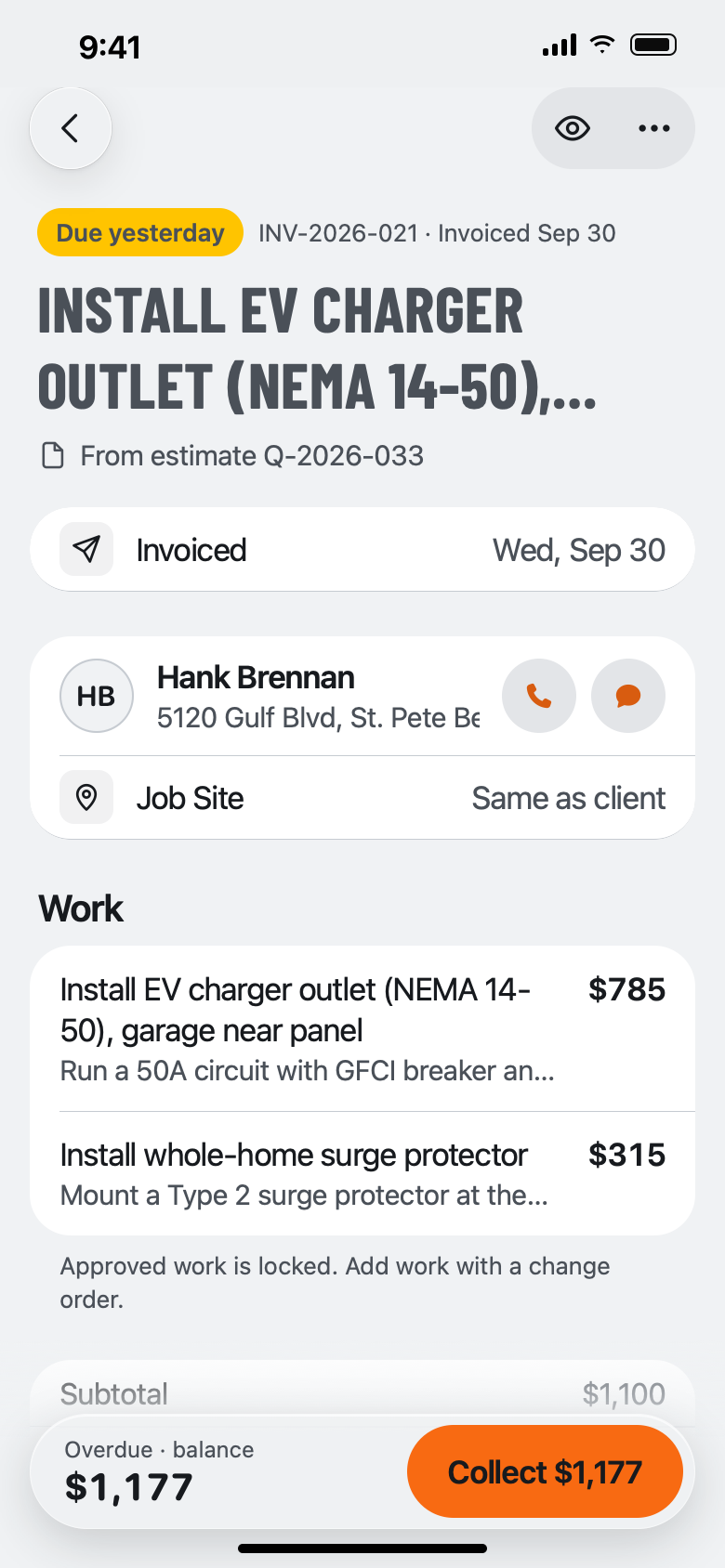
Won the job? One tap turns the quote into an invoice — same numbers, new label.

  1. Open the won quote and tap MAKE INVOICE.
  2. Set a deposit % if you want money up front to schedule.
  3. Send it the same way you sent the quote.
  4. When they pay, tap RECORD PAYMENT. The invoice reads PAID.

Why it matters: every paid invoice lands in your Income CSV — gross receipts your accountant can actually use.

An invoice INV-2026-001 marked UNPAID, total $1,570 with a 30% deposit of $471.
GUIDE 07

Get paid your way

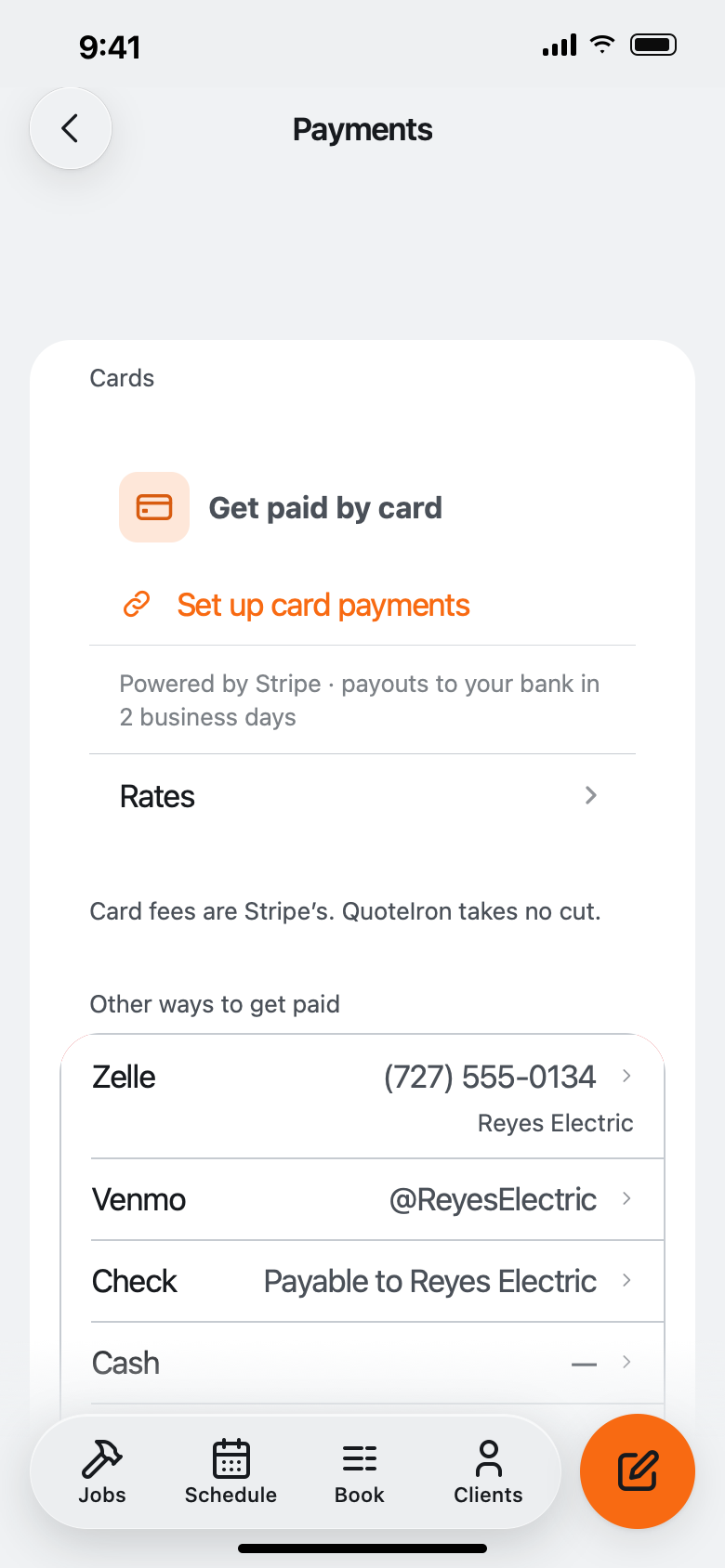
You take money how you already take it. QuoteIron never stands in the middle of it.

  1. Go to Setup → Payment methods.
  2. Pick a service — Zelle, Venmo, Cash App, PayPal, card — and paste your link or handle.
  3. Add as many as you want, then tap SAVE SETUP.

Why it matters: they all show on every invoice your customer opens. QuoteIron never touches a dollar of it, so it can never hold it.

Setup screen with two payment methods added — Venmo and Zelle — and an Add payment method link.
GUIDE 08

Send it in their language

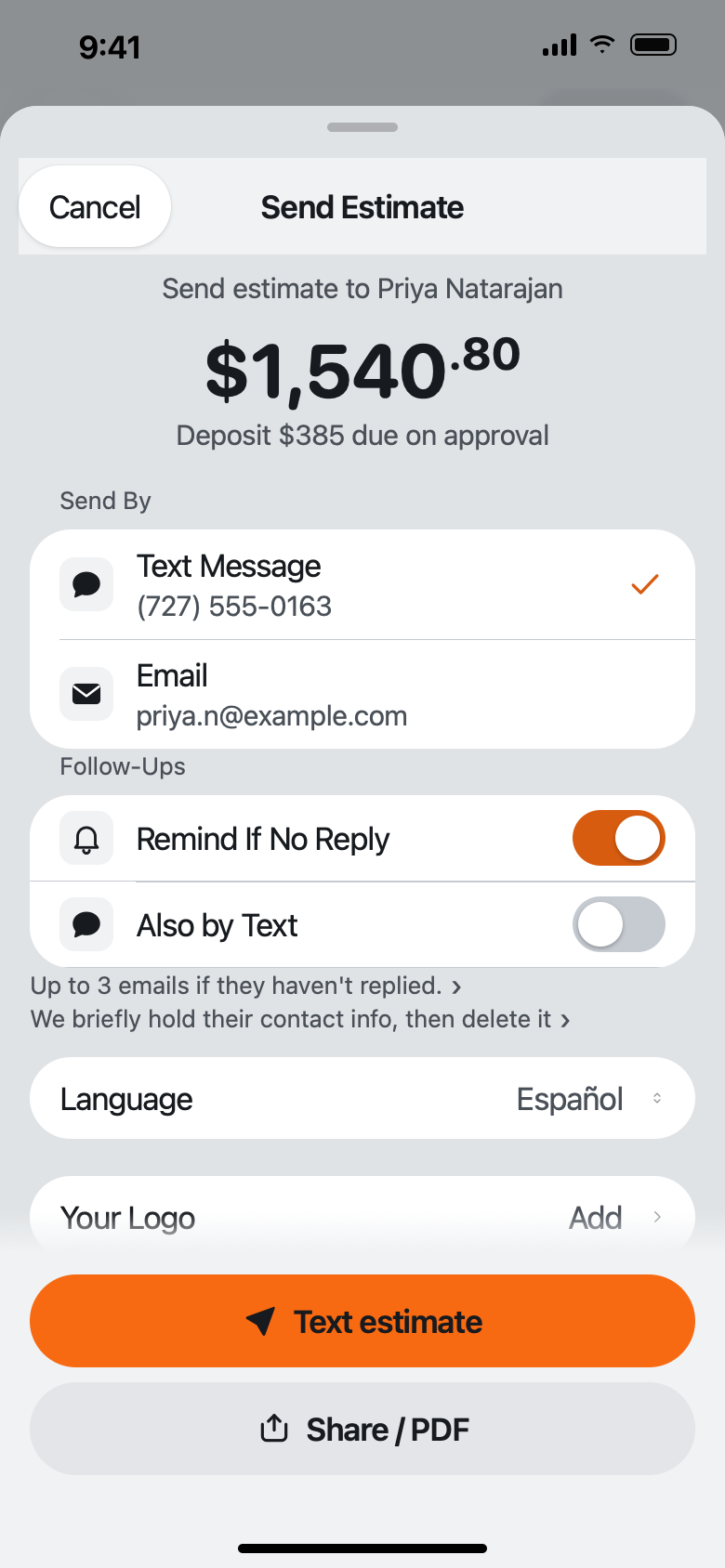
You work in English. Your customer reads Spanish. Set the language on the document, not the app.

  1. In any quote or invoice, scroll to Document language near the bottom.
  2. Pick English, Spanish, French, or Brazilian Portuguese.
  3. Send it. Their estimate lands reading PRESUPUESTO — and your app stays in English.

Why it matters: to change the language of the app itself, that's a separate switch in Setup → Language. English is always the fallback — a missing line shows in English, never a blank.

A quote's Document language picker set to Español, with a note that it's independent of the app's language.
GUIDE 09

Never lose a job

Quotes go quiet. QuoteIron surfaces the ones worth chasing so the money doesn't slip through.

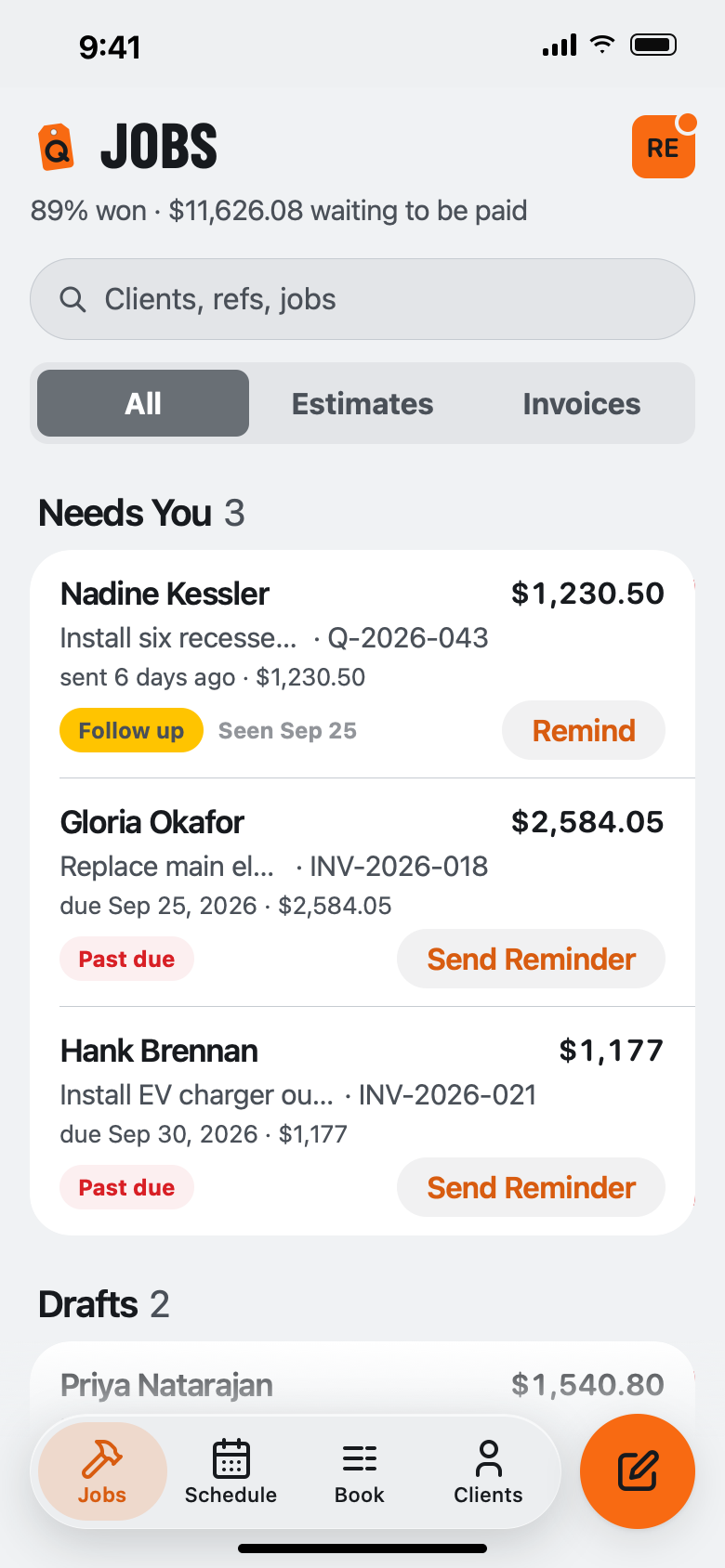
  1. Open Jobs. Anything unanswered past your follow-up window shows under NEEDS A CHASE.
  2. Tap FOLLOW UP to open the quote and text the customer.
  3. Turn on reminders for a nudge — to you, never your customer.
  4. Won a job with a date? Tap ADD TO CALENDAR to drop it on any calendar.

Why it matters: elsewhere this follow-up runs about $99 a month. Here it's just part of the app.

The Jobs screen: win rate 67%, a NEEDS A CHASE list with two follow-up cards, and a list of quotes and invoices by status.
GUIDE 10

Your data, your book

It's yours, and it leaves with you. Back it up, move phones, keep everything.

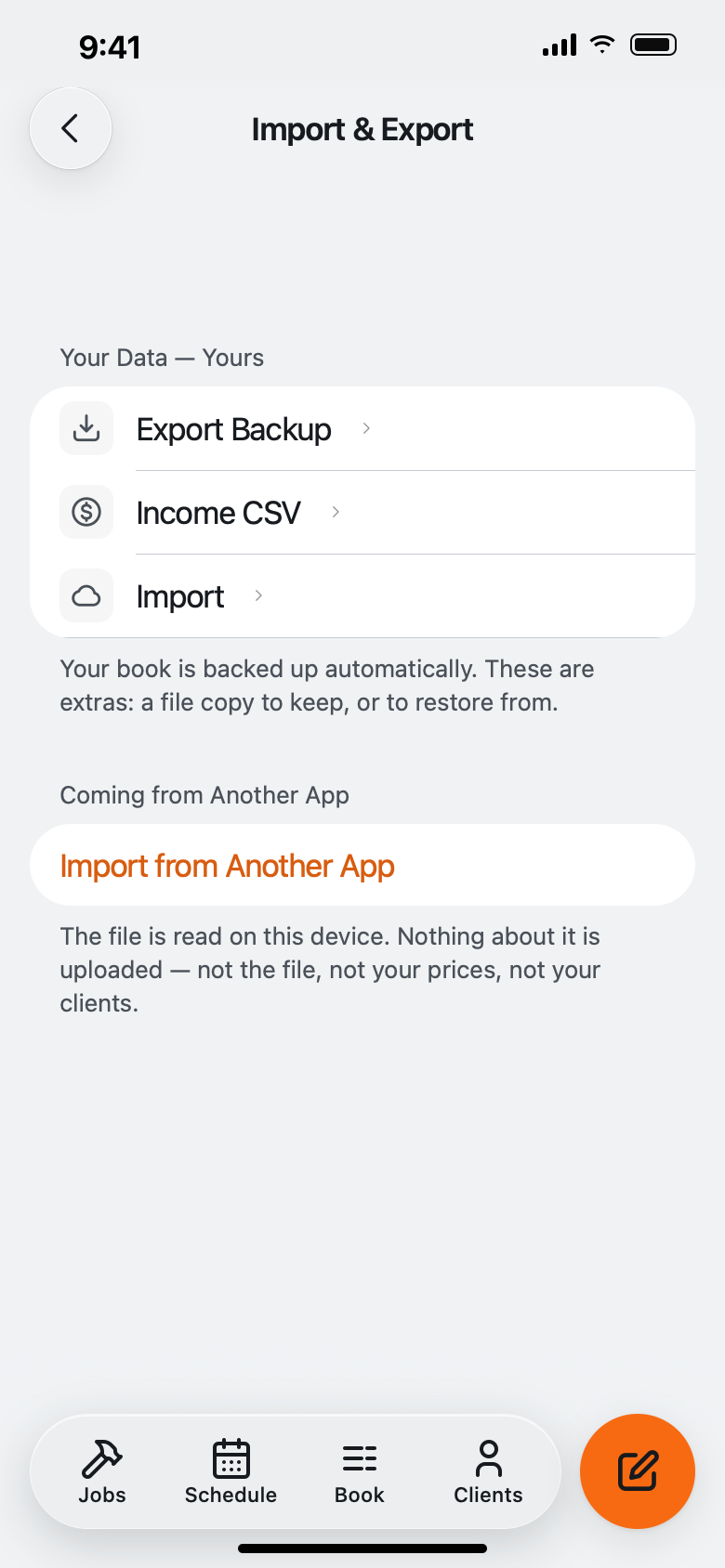
  1. Setup → EXPORT BACKUP saves a full JSON file you keep. INCOME CSV gives your accountant gross receipts.
  2. Turn on cloud backup for an encrypted copy we physically can't read — unlocked with a passkey (Face ID / Touch ID).
  3. New phone? Sign in and restore — your whole book comes back from the encrypted backup.
  4. After an invoice is paid, tap ASK FOR A REVIEW to open a prefilled text or email for that Google review.

Why it matters: your data was never on our servers to begin with. If you ever leave QuoteIron, you leave with everything.

The Your Data section of Setup with Export Backup, Income CSV, and Import, plus an account card showing encrypted backup is on.

Enough reading.
Price a job.

The whole thing works offline, on your phone, in about 90 seconds. Fourteen dollars a month, cancel online.

Open the app